Scrupuli
blunt essays with sharp points

Google Chrome On Track To Overtake Firefox
by ScrvpvlvsJan 12, 2011 5:36 PM–Chrome could overtake Firefox in about one year.
The browser race is continuing to follow same trend that I discussed here eight months ago.
| Browser | Trend | 2010 Market Share | 2011 Market Share |
|---|---|---|---|
| Internet Explorer | in the lead, but losing ¾ to 1 percent of its market share every month. | Down from 6 in 10 users in April to 5.7 in December. | Close to 5 in 10 by year’s end. |
| Firefox | in second place, but maybe doing something more alarming than IE—braking: June 2008 growth was 3 percent per month, May 2009 was 2%, April 2010 was 1%, second half of 2010 was zero. | Down from 2.5 in 10 users in April to 2.3 in December. | Close to 2 in 10 by year’s end. |
| Chrome | in third place, still the fastest growing; gained 11–12 percent per month through April; decelerated beginning in May to what looks like a new plateau of 8%. | Up from 0.7 in 10 users in April to 1 in December. | Close to 2 in 10 by year’s end. |
Based on the trend, Chrome could be tied with Firefox for second place by the end of the year. But will it? One fact in favor is the upcoming release of Chrome OS devices in 2011.
Updated numbers and charts here. And notice in the charts: Internet Explorer has a solstice spike in July 2008, May/June 2009, and May/June/July 2010. Is this a yearly pattern? Maybe graduates entering the workplace and being issued PCs with preinstalled IE? Readers, any thoughts? Should I predict a solstice spike in the IE market share in 2011?
As before, historical data provided by Net Applications. “Top Browser Share Trend”, Net Market Share, http://netmarketshare.com/browser-market-share.aspx?qprid=1&qptimeframe=M&qpsp=112&qpnp=25 (accessed January 12, 2011).
Labels: Alex Chitu, browser, Chrome, Chrome OS, firefox, Google, Google Chrome, Google Operating System, growth, Internet, Internet Explorer, market share, Microsoft, Mozilla, Net Applications, Net Market Share
(go to complete article)
Share:


Chrome Heats Up Faster Than Firefox
by ScrvpvlvsMay 20, 2010 8:00 AM–Update January 12, 2011: New article with updated statistics for the rest of 2010 here.
Alex Chitu has published a chart showing 70 million active Google Chrome users in April 2010, up from 30 million July 2009.¹ Alex compares Chrome to Mozilla Firefox, saying, “Firefox grew from 265 million users to 365 million users in the same period. To put things in perspective, Firefox has 5 times more users than Google Chrome.”
I wondered how much of the growth of Firefox is just due to the growth of Internet use overall. To find out, I developed the three charts below (historical data provided by Net Applications).²
The first chart shows that Firefox growth (red) only kept pace with overall growth. About 1 in 4 browsers were Firefox in April 2010, about the same as in July 2009. By contrast, Chrome growth (navy) outpaced total growth. About 1 in 15 browsers were Chrome in April 2010, compared to only 1 in 39 in July 2009.
The second chart shows that Firefox market share growth (red) was 3% per month two years ago, and the current growth is 1% per month. By striking contrast, Chrome (navy) has sustained a growth rate of 11–12% per month since it was released.
If this trend continues, Chrome will have more users than Firefox in about one year. This is shown in the third chart, which compares projected future performance of Chrome (navy), Firefox (red), and Internet Explorer (blue). Obviously, though (as businesses love to remind investors), past results are no guarantee of future performance.
The chart data are available here. Please let me know about any errors.
1. Alex Chitu, “Google Chrome Has 70 Million Active Users,” Google Operating System, http://googlesystem.blogspot.com/2010/05/google-chrome-has-70-million-active.html (accessed May 20, 2010).
2. Net Applications, “Top Browser Share Trend”, Net Market Share, http://netmarketshare.com/browser-market-share.aspx?qprid=1&qptimeframe=M&qpsp=112&qpnp=25 (accessed May 20, 2010).
Labels: Alex Chitu, browser, Chrome, firefox, Google, Google Operating System, growth, Internet, Internet Explorer, market share, Microsoft, Mozilla, Net Applications, Net Market Share
(go to complete article)
Share:
Send to (Blogger, Bookmarks, Mail, Wayback, English) in Google Chrome
by ScrvpvlvsDec 16, 2008 9:54 PM–
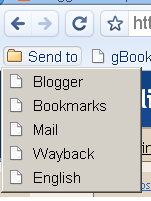 I have customized Google Chrome to make it simple to send the current page to:
- Blogger (create a post about the page)
- Google Bookmarks (bookmark the page)
- Gmail a.k.a. Google Mail (create an e-mail containing the page)
- Wayback (show the page’s revision history)
- Google Translate (show the page in English translation)
The result of this customization is the “Send to” menu. This is very easy to set up and requires no special technical knowledge. This customization is not original with me but it has worked very well for me. Harry McCracken gets the credit.
- If the Google Chrome bookmarks bar is hidden, bring it into view with
Ctrl-BCtrl+Shift+B. [Google changed this keyboard shortcut in 2010 to avoid a conflict with the standard use of Ctrl+B to bold text.] - Right button click on in the bookmarks bar (but not on an existing folder), then click Add folder…
- Name: Send to
- click OK
- NOTE: If the new folder does not appear on the bookmarks bar, then look in existing folders and in the » folder to see if you accidentally created it there. Then simply drag it with the mouse to the location you desire.
Now you have an empty Send to menu.
To add the Blogger option to the menu, drag the text BlogThis! with the mouse from this page at blogger.com and drop on top of Send to. (So that the name makes more sense with the words Send to, you can change the name from BlogThis! to Blogger by clicking Send to, right button clicking on BlogThis!, choosing Edit, and following the directions.)
To add the Bookmarks option to the menu, drag the text Google Bookmark with the mouse from this page at google.com and drop on top of Send to. (I changed the name to Bookmarks.)1
To add the Mail option to the menu, drag the text GmailThis! with the mouse from this page at contrapants.org and drop on top of Send to. (I changed the name to Mail.)
To add the Wayback option to the menu, drag the text WayBack with the mouse from this page at gyford.com and drop on top of Send to.
To add the English option to the menu, drag the text English with the mouse from this page at google.com and drop on top of Send to.
A Google search for bookmarklets will turn up many similar options that you can consider adding to the Chrome bookmarks menu, for example at bookmarklets.com.
- There is a related Chrome customization to make your Google Bookmarks searchable from the address bar (which as far as I know is original with me). The combination of Send to Bookmarks and searchable bookmarks makes Google Bookmarks simple to use in Chrome.
Labels: Blogger, bookmarks, Chrome, Gmail, Google Bookmarks, Google Chrome, Google Translate, Send to, translate, Wayback
(go to complete article)
Share:
Using Google Bookmarks in Google Chrome
by ScrvpvlvsDec 10, 2008 6:00 AM–I prefer Google bookmarks to Chrome bookmarks because I can access them from anywhere. So I customized Google Chrome to use Google bookmarks. This is an easy customization that requires no special expertise or software add-ons.
First, read how Chrome works with the customization and take a look at the screenshots. Then, if you want the same customization, continue reading to see how it’s done.
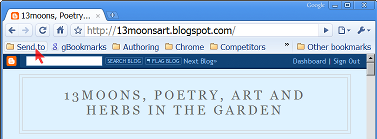
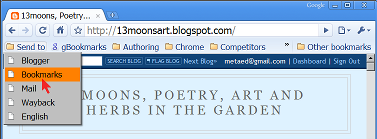
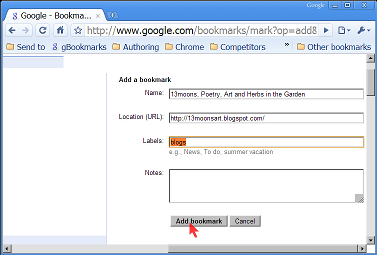
To Google bookmark a page in Chrome
To bookmark the current page, I click my Bookmarks button. (You can see in the screenshot that I file it under Send to, but you can put it anywhere.) I optionally edit the title and add tags to make it easy to find later, and click Add bookmark.
At this point, my Google bookmark is saved and I can access it later from anywhere.



To return to a Google bookmarked page in Chrome
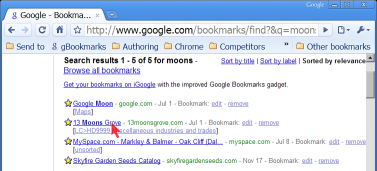
To find a Google bookmark page, I use search, naturally. In the address bar (a.k.a. the omnibox), I type gb (for Google Bookmark), press Tab or Space, type search word(s) that match the bookmark name or tags, and press Enter. On the results page, I click the bookmark I wanted.
To add these customizations to Google Chrome
To create the Bookmarks button, drag this bookmarklet to the Google Chrome bookmarks bar: Google Bookmark (or do the same thing from Google’s help page Bookmarks: Using Google Bookmarks, which is where I got it).
You can, of course, add the bookmarklet to a folder, as I did.
To add Google Bookmark search to the Chrome address bar, right-click in the address bar, choose Edit search engines…, click Add, fill out the form as follows, and click OK:
- Name:
- Google Bookmarks
- Keyword:
- gb
- URL:
- http://google.com/bookmarks/find?&q=%s
(In the Search Engines window there is also an option to make this the default search, if you wish.)
Comments on your experiences with this customization (and on the way it is presented above) would be most welcome!
Labels: address bar, bookmarklet, bookmarks, Chrome, customization, Google, Google Bookmarks, Google Chrome, omnibox, search, Search Engines
(go to complete article)
Share:
A Thirty Year History of Google Chrome, Plus How To Share Chrome Settings Between PCs
by ScrvpvlvsOct 16, 2008 2:47 PM–Google announced Gmail on April 1, 2004, according to the press release. Gmail was followed by other web based applications: word processor, spreadsheet, slide show. These applications have delighted people who use Office, OpenOffice, WordPerfect, or Lotus.
No errors caused by opening a document created with the wrong version of software. No confusing differences in menus, features, or settings between the home computer, the office computer, the laptop.
No schlepping documents around on floppies or discs. No huge e-mail attachments.
No important documents lost to hard drive crashes or stolen laptops. No embarrassing failures to make frequent, time consuming backups.
Just sign in, and the application and the document are ready to work for you—and you can collaborate with anyone else that you give access to. Specialists at the data center keep the system in order, and you get more actual work done.
It comes as a surprise to many people that, thirty years ago, this is how we used computers. You just signed in from wherever you were, and there were your applications and documents, lovingly maintained on the mainframe computer at the data center.
The personal computer devolution.
Around that time, electronics got small and cheap enough that a family or a small business could buy one and make room for it on a desk. By 1980, over a million had been sold worldwide. At the time, we called it the personal computer (PC) revolution. That was when it began to be easy to work at a computer outside a data center.
A computer that didn’t slow down considerably in the afternoon. That you could update yourself when there was an application you needed. That had a printer that was never busy with someone else’s project.
But a cheap PC, with cheap software, that would frequently eat your disk or crash after you had entered an hour’s worth of work or fail to boot after you installed an application.
That wrote disks that another PC would not read. That could call another PC on the phone and transfer a 20 page document from it in about 20 minutes (and maybe fail to open it).
High speed networks bridge the gap.
Thirty years later, PCs have gotten much better, and the network has gotten fast and cheap. The family and the small business have a high speed link from the PC to data centers all over the world. And the new network made it possible to unify the two models of computing.
Enter Google. The Google applications and documentss are stored and kept up to date at the data center, and used from any PC. The application and the document are flash-transfered to and from the PC automatically, over the new high speed network.
The PC, not the mainframe computer, actually powers the application. If the application is underpowered (or when the PC fails, because they all fail—it is only a question of when) you replace the PC without the pain of migrating documents or restoring them from a backup that you made six months ago.
A new browser makes it better.
Finally, enter Chrome, a new browser released by Google in September.
Despite the limitations of the first release, I immediately abandoned Mozilla Firefox for Chrome. Chrome is the next step in the evolution of the PC. Chrome is designed to run network applications differently than other browsers in three ways which I shall call Better, Stronger, and Faster.
Better.
The Chrome developers did not make a more complicated, feature-heavy browser. They made the browser controls simpler and less intrusive than in other browsers. They learned from Firefox and Opera, and added some good ideas of their own.
Stronger.
Mainframe computers were shared by many users running many applications. Barriers had to be erected between applications and between users. These made it impossible for one user to access another user’s private documents. They also made it impossible for one application to crash another application. If an error occurred, it was contained. One bad actor could not bring the whole system down.
These barriers were not originally available on the cheap PCs. It took more than ten years for them to appear. But they did, and PCs crash a lot less. But web browsers have not taken full advantage of this—until Chrome.
Chrome has put these barriers around each browser tab. If an error occurs on a page, it is contained. One bad web based application cannot bring the whole browser down, or interfere with another tab, or access another tab’s private data.
Faster.
By putting barriers around each tab, Chrome also recycles all the memory of a tab when you close it. I can’t tell you how often I have restarted Explorer, or Firefox, or (faugh!) AOL because poor recycling of memory had led to a memory shortage on the PC. I have never had to do this with Chrome.
Chrome even provides a task window that shows the size and activity of each tab and plug-in, so you can see any bad actors and close them.
Problems with Chrome.
Chrome is brand new, and there are still problems to be worked out. There are two problems that plague me in the first release.
One is a software glitch. Applications that rely on plugins such as Java, Flash, Adobe Reader, or Google Gears can still cause the entire browser to come to a halt. I tend to run into this with YouTube, Google Analytics, and National Weather Service radar loops.
Incredibly, the other is that Chrome—the very application that is helping unify the PC with the data center—stores its browser settings, bookmarks, history, and open tabs on each PC instead of at the data center! With Firefox there were add-ons available to do this (Google Browser Sync and then Mozilla Weave) which I sorely miss.
Being a data center kind of guy myself, I could not wait for Google to fix this. I added an application called SyncToy from Microsoft. It keeps my Chrome settings the same at work and at home, including bookmarks, history, and open tabs. It’s very easy to operate, but it took a little work to set it up.
Here’s how I set it up.
Both PCs run Microsoft Windows XP.
I installed WebDrive 8.2 on both PCs. This shareware app lets any other app on the PC see a remote file server as a local hard drive with its own drive letter such as Z:. I gave WebDrive a password to a public FTP file server that I already have an account on. (Before I selected WebDrive, I tried NetDrive and FTPDrive, which are freeware apps. They nearly worked, but they corrupted the files. WebDrive was reliable.)
I installed Microsoft .NET Framework 2.0 on both PCs. I did this because SyncToy needs it.
I installed SyncToy 2.0 on both PCs. I gave SyncToy the name of the Chrome user data directory on my PC:
C:\Documents and Settings\Edward\Local Settings\Application Data\Google\Chrome\User Data\DefaultI created an empty directory on the Z: drive and gave that to SyncToy to sync with the Default directory. I told SyncToy not to copy the Thumbnails file or the Cache subdirectory, and for my peace of mind I told it to check file contents.
That was all. Now, before I start Chrome and after I stop it, I bring up SyncToy, preview the sync, and run it.
I expect I’ll have to work out a bug or two in this procedure, and then I hope to use SyncToy’s scheduling feature to make the extra steps automatic. If I accomplish that, I’ll post a followup article.
Labels: .NET Framework, application, browser, Chrome, crash, data center, firefox, Google, history, mainframe, memory, Microsoft, PC, synchronization, SyncToy, Weave, web, WebDrive, Windows, XP
(go to complete article)
Share:
about.me
Follow


vs.


Recent Articles
Open letter re: Grinnell College alumni “lifetime”...
Spybot – Search & Destroy interferes with Lync 201...
Howard Schultz of Starbucks: firm on support for m...
In each of us, two natures are at war
Clorox does not understand how to measure bleach
Archives
November 1999June 2000
July 2000
September 2001
October 2001
February 2002
March 2002
June 2003
February 2004
June 2004
July 2004
August 2004
September 2004
February 2005
March 2005
November 2005
July 2007
March 2008
April 2008
May 2008
October 2008
November 2008
December 2008
January 2009
April 2009
September 2009
December 2009
February 2010
March 2010
May 2010
June 2010
September 2010
October 2010
November 2010
December 2010
January 2011
April 2011
June 2011
July 2011
August 2011
September 2011
December 2011
February 2012
April 2012
May 2012
June 2012
July 2012
August 2012
September 2012
November 2012
January 2013
February 2013
April 2013
February 2014
May 2014
October 2014
June 2017
February 2019
Finish each day and be done with it. You have done what you could. Tomorrow is a new day; begin it well and serenely and with too high a spirit to be encumbered with your old nonsense. —Ralph Waldo Emerson
Sometimes they fool you by walking upright.
What part of “Ph’nglui mglw’nafh Cthulhu R’lyeh wgah’nagl fhtagn” don’t you understand?
Build a man a fire, and he’ll be warm for a day. Set a man on fire, and he’ll be warm for the rest of his life. —Terry Pratchett
Never try to teach a pig to sing; it wastes your time and it annoys the pig. —Robert Heinlein
Do not ask why the past was better than the present, for this is not a question prompted by wisdom. —Ecclesiastes 7:10
Power lines abruptly stopped causing cancer in 1997 after the U.S. National Cancer Institute conducted a better study. —Robert Parks
Встретимся под столом! (Vstretimsja pod stolom: To meeting you under the table!)
The more you cry, the less you’ll pee.
Relish the love of a good woman.
It’ll never get better if you keep picking at it. —advice from Judge “Maximum” Bob Gibbs